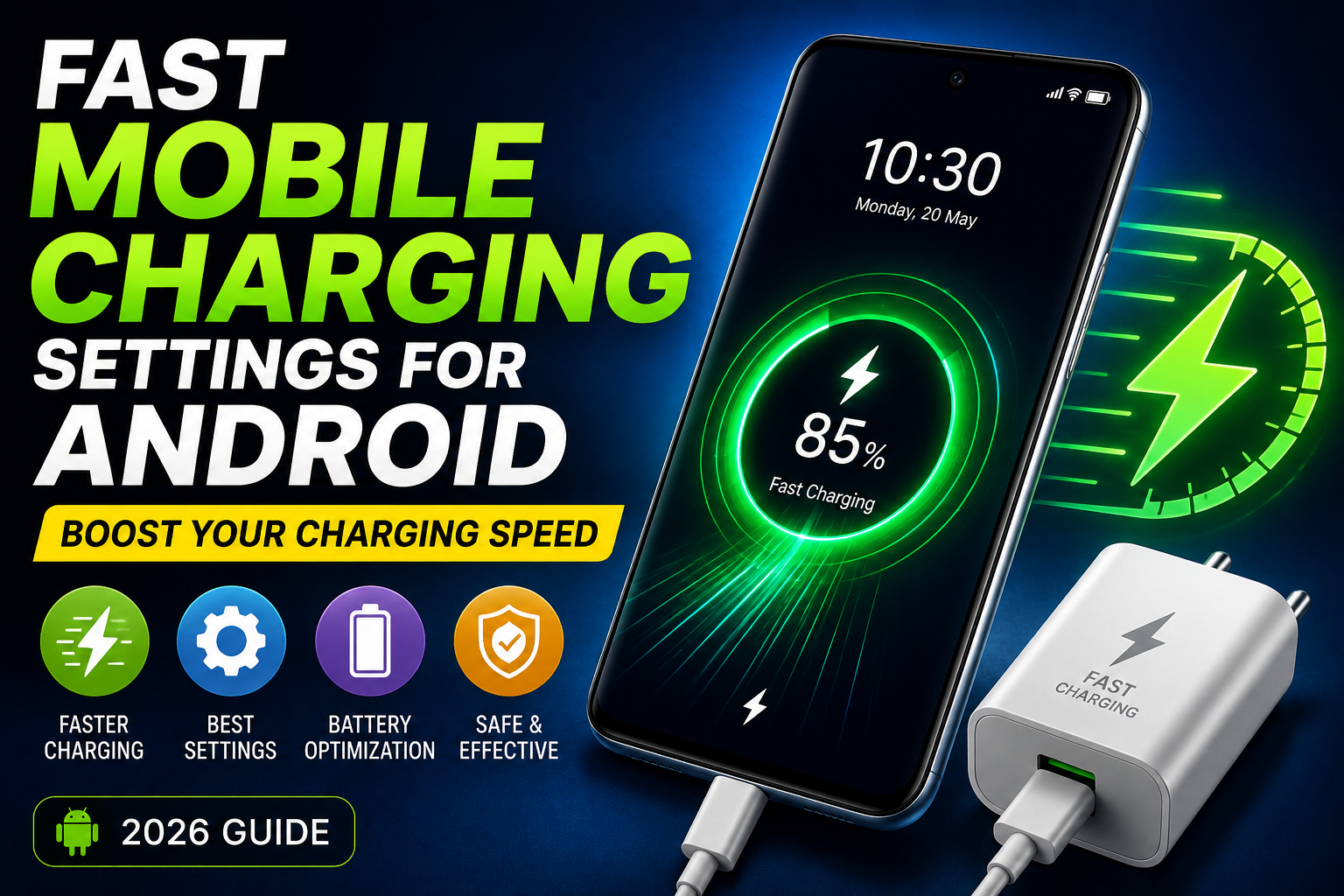
A slow-charging Android phone can be extremely frustrating, especially when you need your device for work, entertainment, online meetings, gaming, or social media. Many users assume that a slow charge means they need a new battery or charger, but in many cases, simple Android settings and charging habits can make a noticeable difference.
Modern Android smartphones come with advanced battery management features designed to improve charging efficiency. By optimizing these settings and avoiding common charging mistakes, you can help your device recharge faster while maintaining good battery health.
This complete 2026 guide explains the best Android charging settings, battery optimization tips, and practical methods to improve charging speed safely.
Why Is My Android Phone Charging Slowly?
Before changing settings, it’s important to identify what may be causing slow charging.
Common reasons include:
- Too many apps running in the background
- Weak or damaged charging cables
- Dust inside the charging port
- High screen brightness
- Overheating during charging
- Outdated Android software
- Battery-intensive apps
- Non-certified chargers
- Poor charging habits
Understanding these factors can help you solve charging issues more effectively.
Enable Airplane Mode While Charging
One of the easiest ways to improve charging speed is to turn on Airplane Mode.
When Airplane Mode is enabled:
- Mobile networks are disabled
- Signal searching stops
- Background syncing decreases
- Battery consumption drops
This allows more power from the charger to go directly into the battery.
How to Turn On Airplane Mode
- Swipe down from the top of the screen.
- Open Quick Settings.
- Tap the Airplane Mode icon.
- Connect your charger.
Many Android users notice faster charging when this feature is enabled.
Turn Off Unused Wireless Features
Several wireless services continue consuming power even when not actively used.
Temporarily disable:
- Wi-Fi
- Bluetooth
- GPS Location
- NFC
- Mobile Hotspot
- Nearby Device Scanning
Reducing these background activities can improve charging efficiency.
Activate Battery Saver Mode
Battery Saver is designed to reduce power consumption by limiting background activity.
Benefits of Battery Saver
- Restricts background apps
- Reduces processor activity
- Minimizes visual effects
- Improves charging efficiency
How to Enable Battery Saver
Go to:
Settings → Battery → Battery Saver
Turn it on before connecting your charger for better charging performance.
Lower Screen Brightness
The display is one of the largest battery consumers on any smartphone.
To improve charging speed:
- Reduce brightness manually
- Enable Auto Brightness
- Disable Always-On Display
- Turn off the screen while charging
A phone with the display off usually charges much faster than one being actively used.
Close Unnecessary Background Applications
Many apps continue running after you leave them.
Common battery-draining apps include:
- Social media applications
- Video streaming platforms
- Navigation services
- Online games
- Messaging apps
How to Close Apps
- Open Recent Apps.
- Close applications you are not using.
- Enable battery optimization where available.
Reducing background activity allows the charging system to work more efficiently.
Use Adaptive Battery Features
Most Android smartphones now include Adaptive Battery technology.
This feature learns how you use apps and reduces battery usage from applications you rarely open.
Advantages of Adaptive Battery
- Better power management
- Reduced background activity
- Improved battery efficiency
- Longer battery lifespan
Enable Adaptive Battery
Go to:
Settings → Battery → Adaptive Battery
Enable the feature and let Android optimize battery usage automatically.
Avoid Using Your Phone During Charging
Using the phone while charging is one of the most common reasons for slow charging.
Activities that slow charging include:
- Watching videos
- Gaming
- Video calls
- Social media browsing
- Live streaming
These activities consume power while the battery is trying to recharge, reducing overall charging speed.
For best results, leave the phone idle until charging is complete.
Keep the Device Cool
Heat is one of the biggest enemies of battery performance.
When a phone becomes too hot, Android automatically reduces charging speed to protect the battery.
Tips to Reduce Heat
- Remove thick protective cases
- Avoid charging in direct sunlight
- Charge in a cool environment
- Avoid gaming while charging
- Keep charging ports clean
Maintaining lower temperatures helps support consistent charging performance.
Enable Fast Charging Settings
Many Android devices support technologies such as:
- Fast Charging
- Super Fast Charging
- Turbo Charging
- Quick Charge
- USB Power Delivery (PD)
How to Check Fast Charging
Open:
Settings → Battery → Charging
If available, enable:
- Fast Charging
- Super Fast Charging
- Fast Wireless Charging
These settings help compatible devices charge more efficiently.
Keep Android Updated
Software updates often include improvements related to charging and battery optimization.
Benefits of Updates
- Better battery management
- Charging stability improvements
- Bug fixes
- Performance enhancements
- Security updates
Check for Updates
Go to:
Settings → Software Update → Download and Install
Keeping Android updated ensures optimal charging performance.
Use Original Chargers and Cables
Charging accessories have a major impact on charging speed.
For the best results:
- Use the manufacturer’s original charger
- Choose certified charging cables
- Avoid cheap low-quality accessories
- Replace damaged cables immediately
Even the best Android settings cannot overcome poor charging hardware.
Clean the Charging Port Regularly
Dust and debris inside the charging port can interfere with charging performance.
Signs of a dirty charging port include:
- Loose charging connection
- Charging interruptions
- Slow charging speed
Carefully clean the port using appropriate tools or seek professional assistance if necessary.
Best Battery Charging Habits in 2026
Following healthy charging habits helps maintain long-term battery performance.
Recommended practices:
- Keep battery levels between 20% and 80% when possible
- Use quality chargers and cables
- Avoid excessive heat
- Keep software updated
- Clean charging ports periodically
- Avoid frequent complete battery drains
These habits help preserve battery capacity over time.
Common Charging Mistakes to Avoid
Many users unknowingly reduce charging speed by:
- Using damaged cables
- Charging while gaming
- Keeping maximum screen brightness enabled
- Running dozens of background apps
- Charging in hot environments
- Ignoring software updates
- Using low-quality charging accessories
Avoiding these mistakes can significantly improve charging performance.
Signs Your Battery May Need Attention
If your phone continues charging slowly despite following these tips, the battery itself may be aging.
Possible warning signs include:
- Rapid battery drain
- Unexpected shutdowns
- Excessive overheating
- Swollen battery
- Significant charging delays
In such cases, professional battery inspection may be necessary.
Frequently Asked Questions
Does Airplane Mode Make Charging Faster?
Yes. Airplane Mode reduces network-related battery usage, allowing more charging power to reach the battery.
Is Fast Charging Safe?
Yes. Modern Android smartphones include built-in safety systems that regulate temperature, voltage, and charging current.
Does Battery Saver Help Charge Faster?
Battery Saver reduces background activity, which can improve charging efficiency.
Why Is My Phone Charging Slowly Even With a Fast Charger?
Possible causes include:
- Damaged charging cable
- Dirty charging port
- Background applications
- Overheating
- Battery degradation
- Software issues
Should I Use My Phone While Charging?
Light usage may be acceptable, but heavy activities such as gaming or video streaming can slow charging and generate additional heat.